



Title Page
-
-
This audit is to be used when completing a Go Live on a Marston's site.
Firstly introduce yourself to the Manager or most senior member of staff on site explain you are from nGeneration here to support them on there Go Live day. -
Document No.
-
Audit Title
-
Client / Site
-
Conducted on
-
Prepared by
-
Location

Go Live Back office Process
-
Marston's Go Live day
-
After introducing yourself to the manager familiarise yourself with the site layout where the tills are etc. Speak to the manager and enquire about floats for tills for when you start session.
-
Proceed to the back office to print a takings report
-Log into ABS by pressing the ABS back office Shortcut on the desktop
-Press the Report & Views tab
-Press Takings tab
-Press Master Takings
-Press Print button located on the right hand side column
Once printed please use the on site scanner to scan the page and send to Alex Davies -
Have you printed the takings report and sent it to Alex Davies ?
-
-
Next step is to allocate the staffs Dallas keys
-Firstly ask the manager the names and Authorisation levels i.e. Manager , Deputy Manager and Staff
-Log back into ABS and press the Staff Maintenance Tab
-Press New and input the staff members Forename, Surname and Logon Name that appears when logging into the till.
-Then select Job Title
- Then select a Point of sale number (Save 001 - 003 and 97 - 100 for Managers keys
-Then select a point of sale Password (4 digit number)
-If they require access to ABS back office system you will be asked to confirm a Password -
Have you allocated the sites Dallas keys ?
-
Clear Down Process
After allocating the Dallas keys a clear down is next
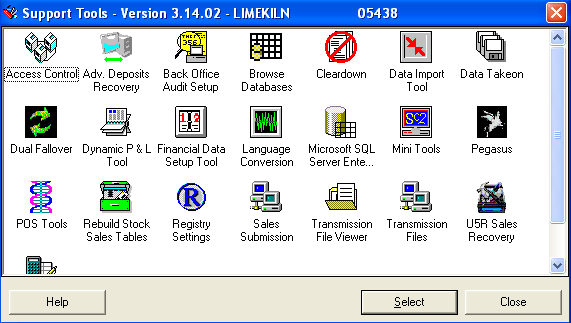
-Open tools for SQL (Can be found in Admin tools)
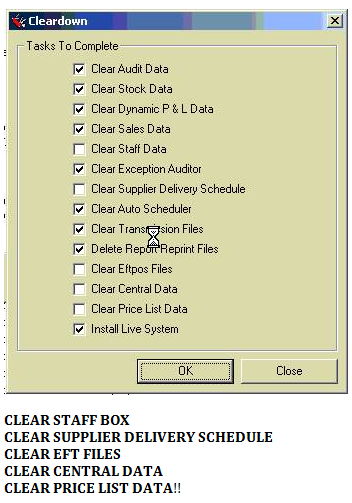
-Then select Cleardown
**FIND OUT IF SITE HAVE ENTERED IN ANY STOCK ON THE BOS SYSTEM, if NO then Clear down the old session and start session. DO NOT CLICK the following -
-
-
** IF SITE HAVE ENTERED STOCK ONTO THE BOS SYSTEM UNTICK CLEAR STOCK DATA ** After ticking the necessary boxes click ok to continue
press NO to extract and flag files for extract within POS Tools -
Have you completed a clear down ?
-
Extract within POS Tools
-
-
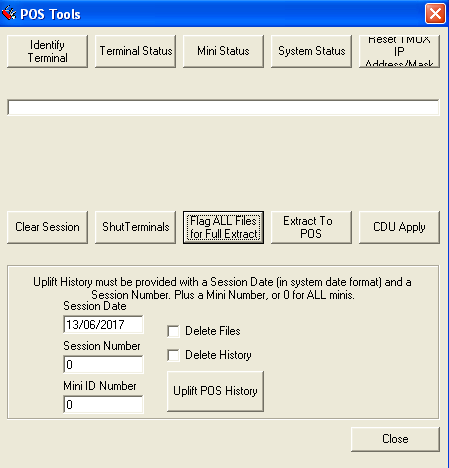
POS Tools can be found inside the Tools for SQL menu
-Select FLAG ALL FILES FOR FULL EXTRACT
-Then select EXTRACT TO POS
this can take up to an hour depending on how may tills site have

Trading Start Up
-
Starting Session
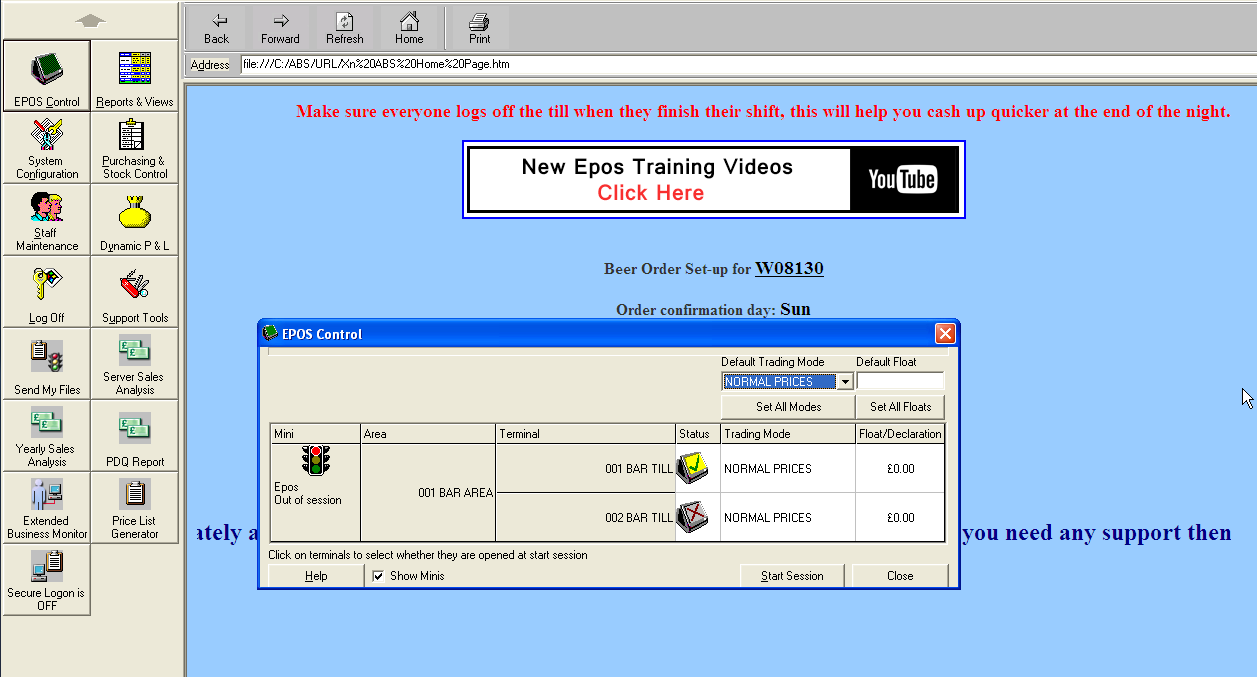
-Log into ABS then select EPOS Control
-Ensure all floats and trading mode's are correct with the Manger
-Once Manager is happy select start session -
-
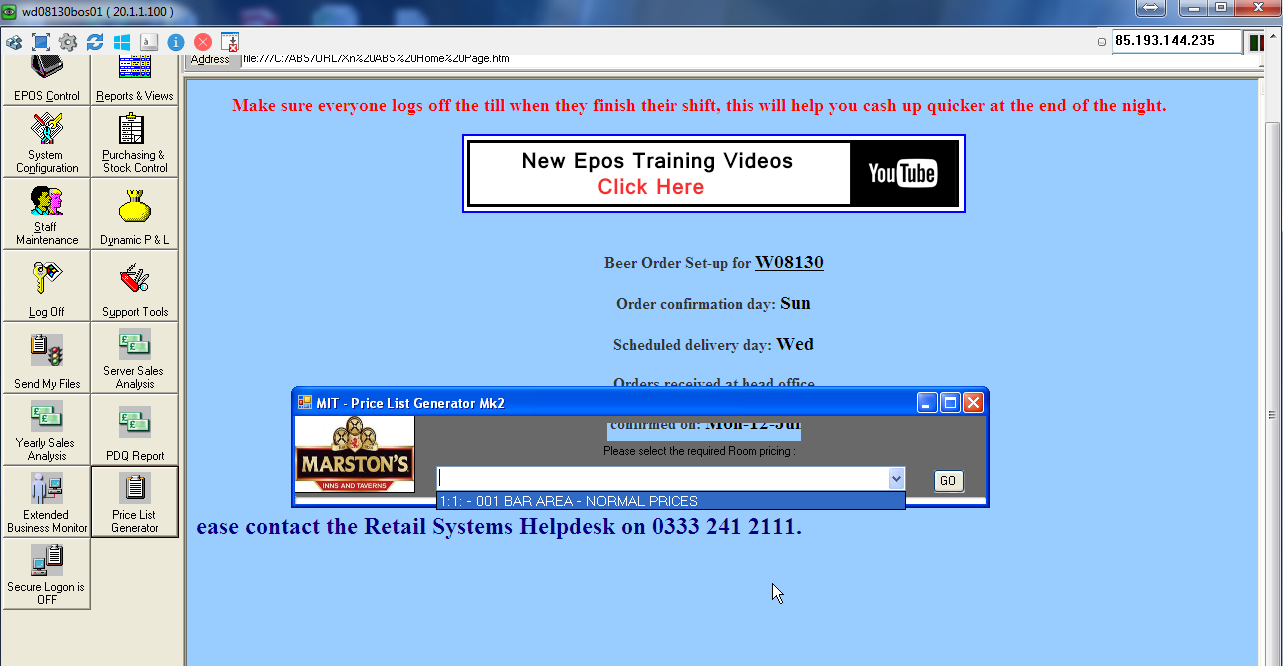
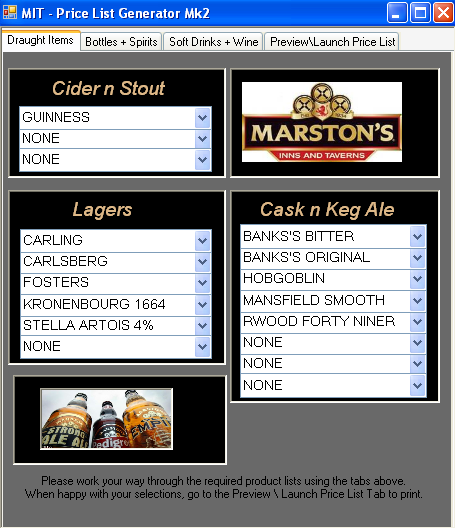
PRICE LIST GENERATOR
-log into ABS then select price list generator
-Create a list with the manager of items they sell
-Print once list has been created -
-
-
TESTING
-
Are all Printers, Cash draws and Tills working ?
-
Price enquiry
-Work with the manager and check all pricing and till content is correct any issues raise straight to Marston's EPOS Data and Alex Davies -
Are all prices and till content correct ?
-
Supporting site
-Support site through GO LIVE and assist with till functionality Training and Kitchen Printing. Any issues raise straight to Project Control
Sign off
-
Managers Name
-
Add signature
-
Managers Comments
-
Issues LOG